

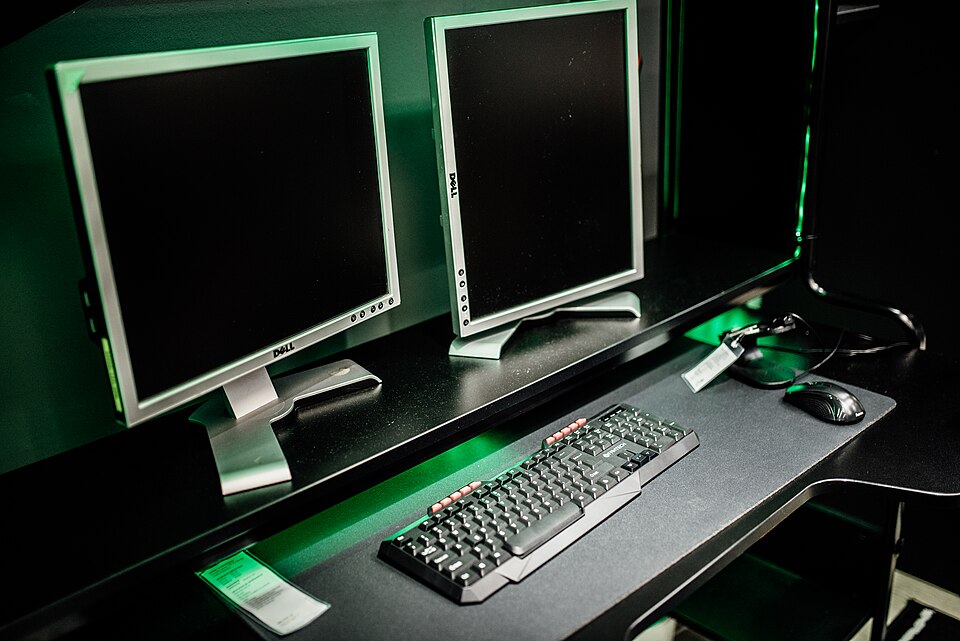
Gamers care about two things that often conflict: a setup that looks great, and games that run fast. Live wallpapers sit right at that intersection. DesktopHut can make a gaming desk look spectacular, but only if it is configured so that games always get priority. This guide explains how to enjoy animated backgrounds without sacrificing frames per second.
The key insight is timing. A live wallpaper matters most when you are on the desktop: launching games, chatting with friends, or browsing between matches. During actual gameplay, the wallpaper is hidden behind the game anyway. A well-configured app therefore spends its resources when you can see it, and steps aside when you cannot.
Let the App Pause During Games
The most important setting is playback pausing for full-screen applications. When enabled, the wallpaper stops rendering the moment a game goes full screen, freeing the graphics card entirely for the game. When you return to the desktop, the wallpaper resumes automatically. This single setting removes most performance worries for gamers.
Check that pausing works with your games. Some games run in borderless windowed mode rather than true full screen, and the app may treat those differently. If a wallpaper keeps playing during a borderless game, adjust the pause rule to include maximized windows as well, or switch the game to full-screen mode for competitive play.
Choosing Game-Friendly Scenes
For gaming desks, darker scenes with slow motion work best. Neon city loops, slow abstract waves, and dark space themes look great with RGB lighting and do not fight with game art. Bright, fast scenes can look exciting in screenshots but add visual noise to a desk already full of glowing peripherals.
Consider matching the wallpaper to your favorite genre. A sci-fi scene suits space games, a dark fantasy landscape suits role-playing games, and a clean abstract loop suits competitive shooters where focus matters. The wallpaper becomes part of the room’s atmosphere rather than a separate distraction.
RGB and Room Lighting
Many gaming setups use colored lighting, and the wallpaper should complement it rather than clash. If your keyboard and case glow blue, a blue-toned wallpaper ties the desk together. If lighting changes color, a neutral dark wallpaper adapts to any scheme. Think of the wallpaper as the largest light source on the desk, and choose accordingly.
Multi-Monitor Gaming Desks
Multi-monitor gamers face a choice: stretch one scene across all screens, or keep the gaming monitor plain and animate only the side monitors. The second option is popular for competitive players, since the main screen stays clean and the side screens carry the style. Casual players often prefer one wide scene for immersion.
Try both layouts. Use a stretched panorama for single-player sessions and a side-only setup for competitive matches. Switching layouts takes seconds, so there is no need to commit to one approach permanently.
Performance Checks Before a Session
Before an important gaming session, do a quick check. Open your game, confirm smooth frame rates, and glance at graphics usage. If frames drop, first check the pause setting, then the wallpaper frame rate limit. Lowering the limit to 30 FPS or switching to a simpler scene usually restores full performance immediately.
Also keep graphics drivers updated. Live wallpapers, games, and streaming software all depend on the graphics driver, and outdated drivers cause more problems than any single app. A monthly driver check is a good habit for any gaming PC.
Streaming and Content Creation
Streamers get extra value from live wallpapers, since the desktop often appears on camera between games or during breaks. A tasteful animated background looks far better on stream than a plain desktop or a cluttered one. Just remember that viewers see your desktop too, so avoid personal photos or sensitive information in custom wallpapers.
For recording, the same pause rules apply. If you capture the desktop itself, the wallpaper will be part of the video, so choose a scene that reads well on camera: not too bright, not too fast, and free of flashing effects that compress poorly in video.
Keeping Drivers and the App Updated
Live wallpapers depend on the graphics driver, the app itself, and Windows working together. When one of them falls behind, glitches appear: stuttering, missing playback, or settings that stop working. Updating graphics drivers monthly is the single best maintenance habit for a gaming PC, and it benefits games and streaming software as well as wallpapers. Update the wallpaper app when new versions appear, since updates often fix compatibility with new Windows builds and new games. Windows updates deserve the same attention, though it is wise to install them when you have time to restart and test, not minutes before a competitive match. After any major update, spend a few minutes confirming that pausing still works and that your favorite scenes still play smoothly. Small, regular maintenance prevents most wallpaper problems before they interrupt a gaming session.
Community presets can also help. Many players share their wallpaper and lighting combinations online, and trying a shared preset is faster than building one from scratch. Adapt any preset to your own hardware and taste rather than copying it exactly, since every desk and graphics card behaves a little differently.
Final Thoughts
A gaming setup can look amazing and still run at full speed, as long as the wallpaper knows when to step aside. Enable pausing for full-screen apps, choose darker and slower scenes, and test performance before competitive sessions. With those habits, desktophut.org becomes a finishing touch for your desk rather than a tax on your frames, and your setup looks as good between games as it feels during them.
